Detailed AWS IAM setup
This page is screenshots and short captions only. For copy-ready IAM JSON and verify tools, use the Setup page.
- 1
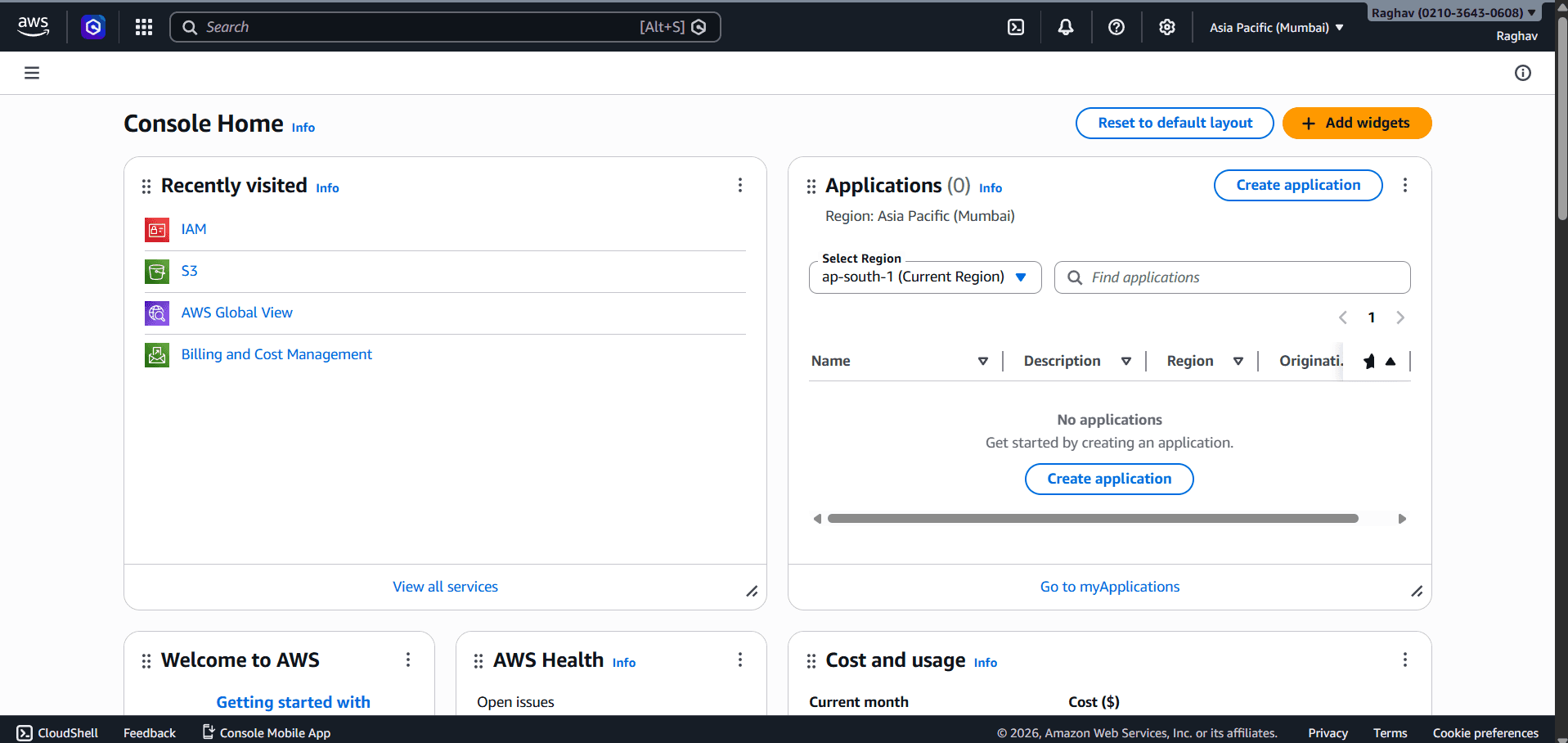
Open IAM
In the AWS Console search bar, search for IAM, or open IAM from Recently visited.
- 2
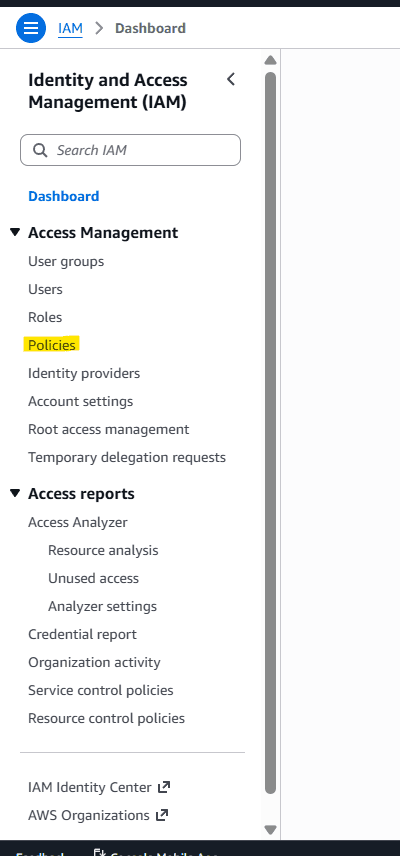
Policies
In the IAM sidebar, choose Policies.
- 3
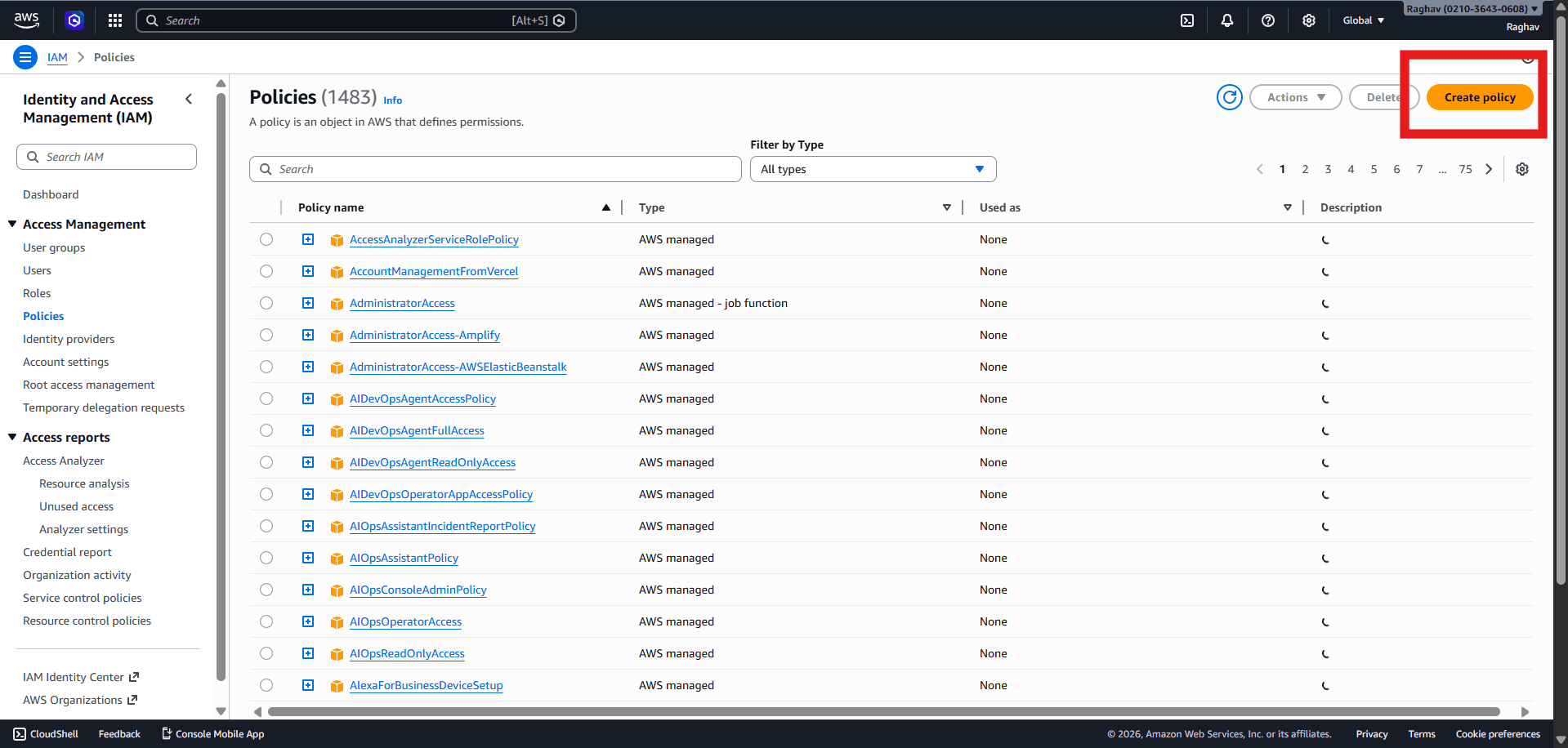
Create policy
Click Create policy.
- 4
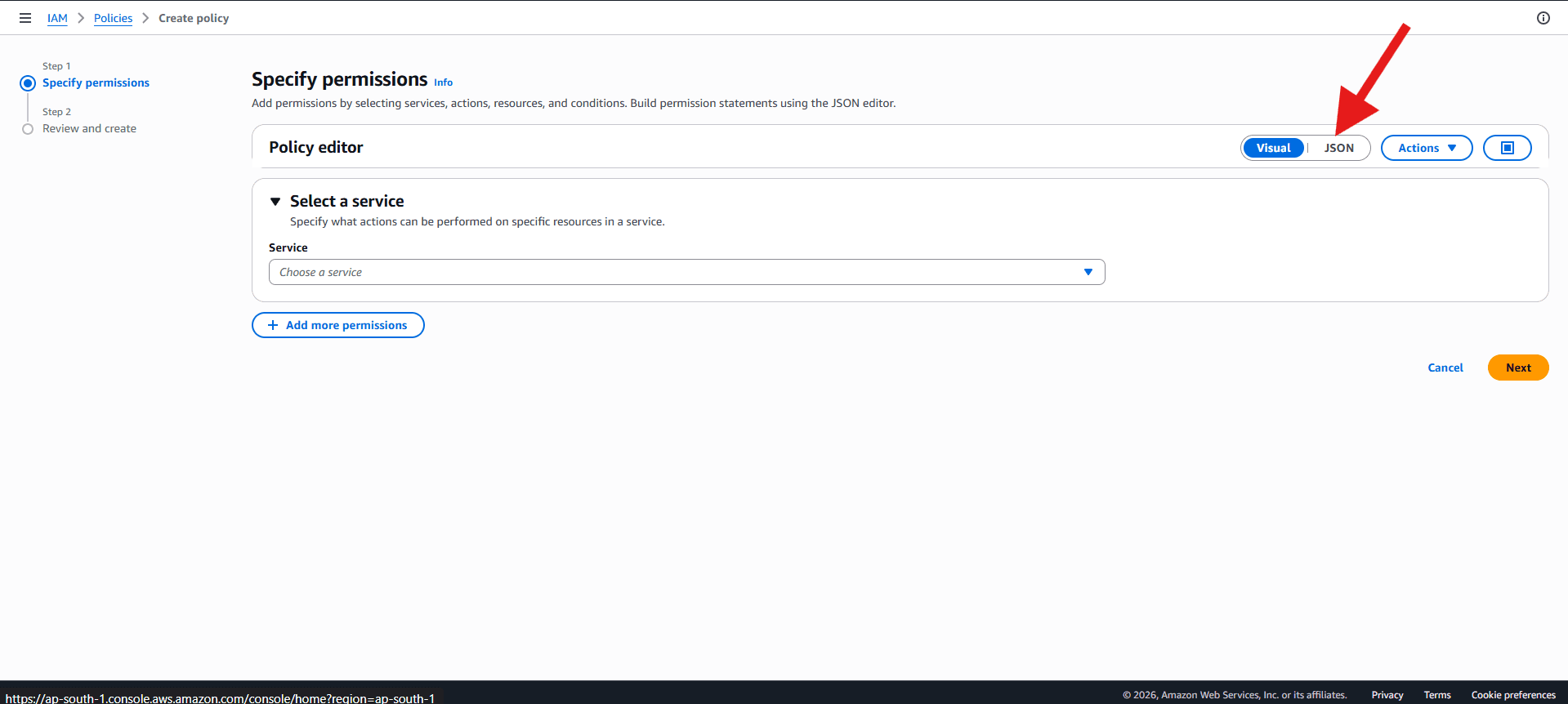
JSON editor
Open the JSON tab so you can paste the permission policy document.
- 5
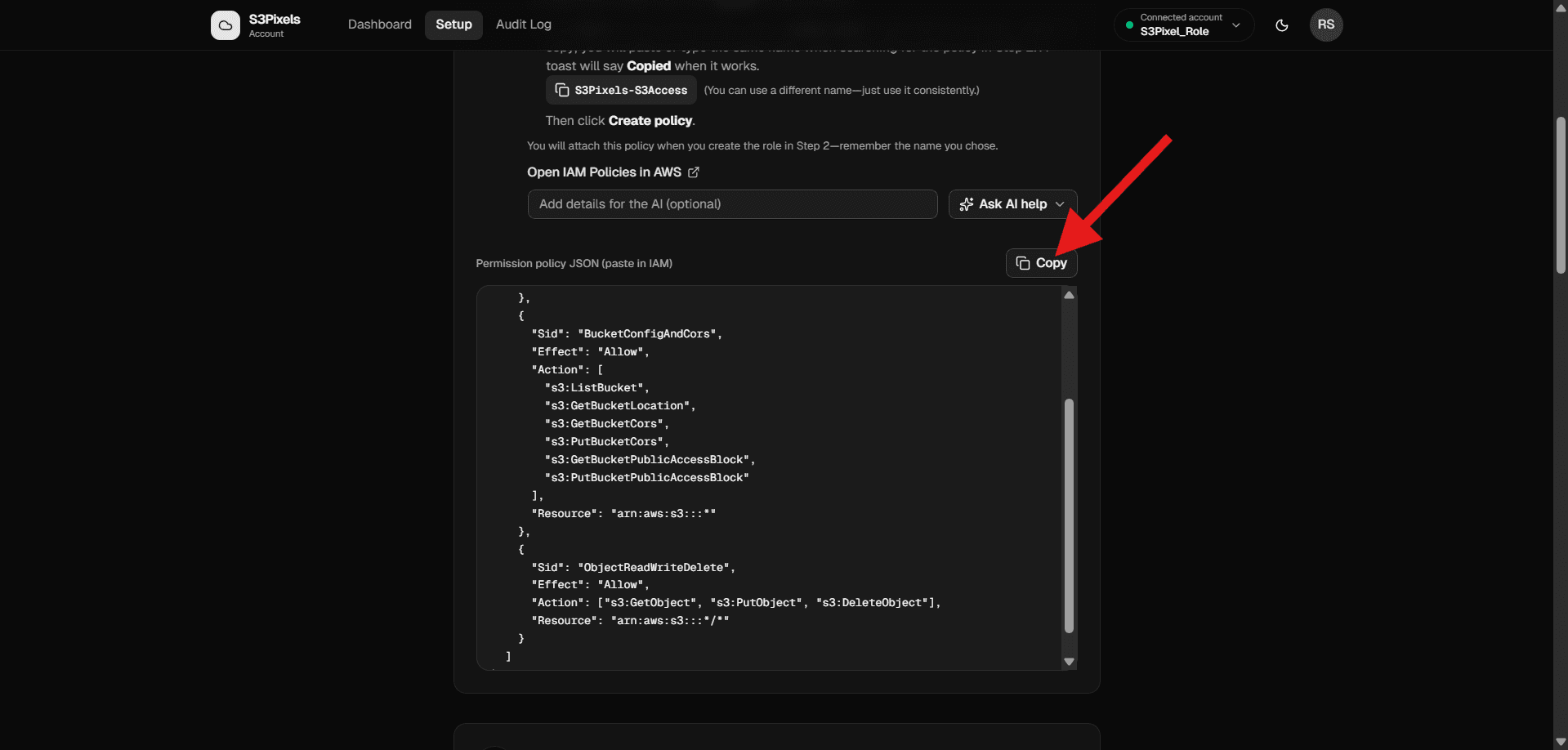
Copy from S3Pixels
On the S3Pixels Setup page, Step 1, use Copy on the permission policy JSON.
- 6
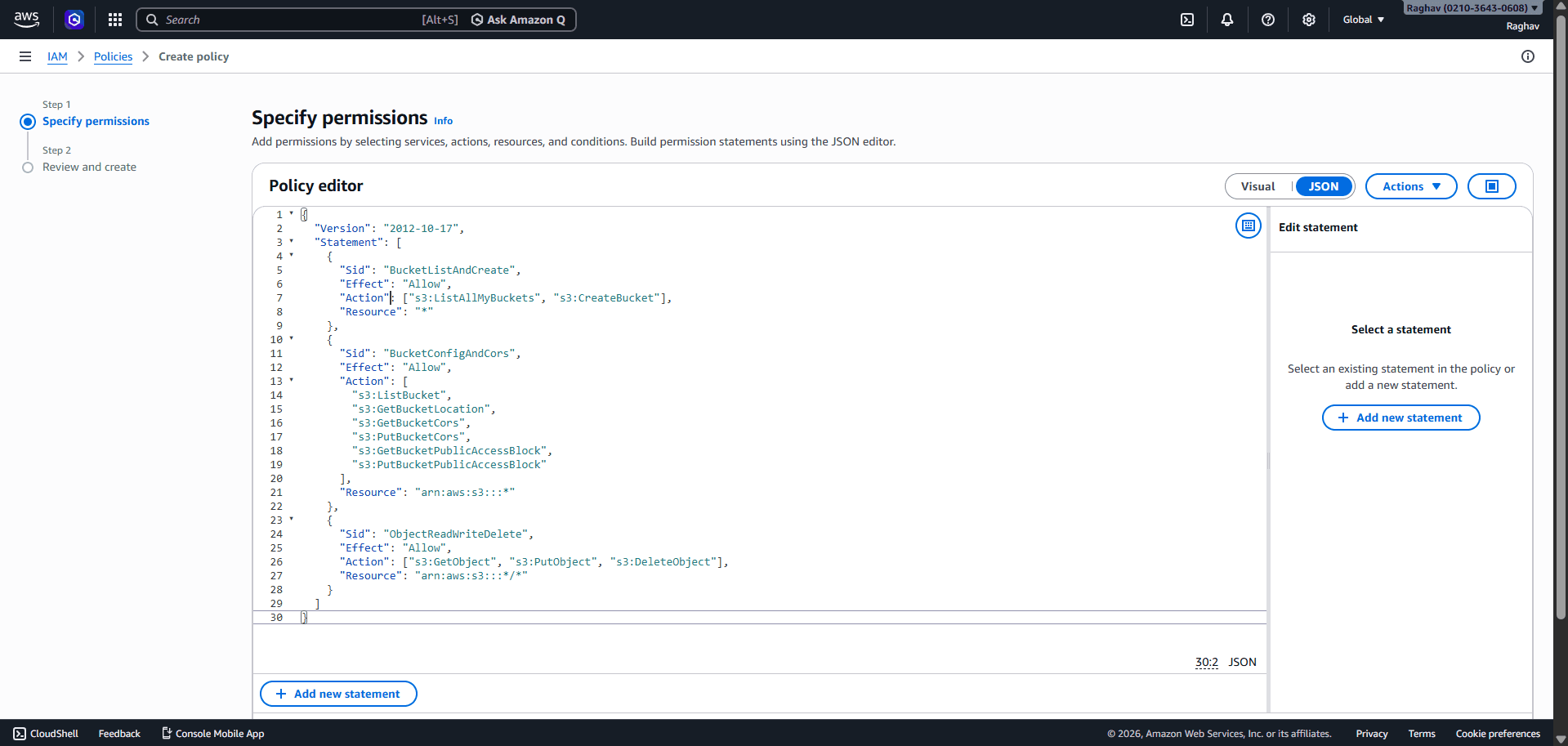
Paste and continue
In the policy editor, select any sample text, replace it with what you copied from Step 1, then scroll down and click Next.
- 7
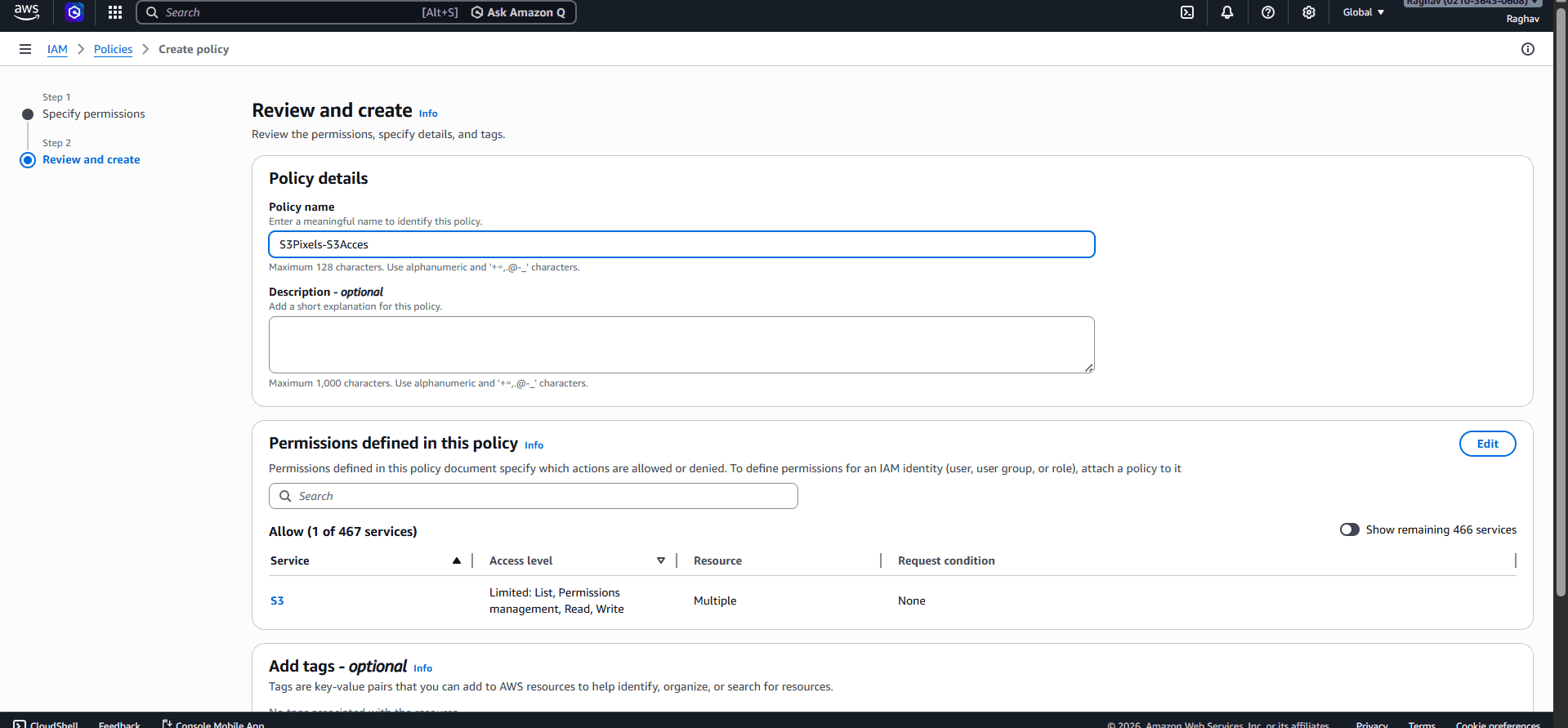
Name the policy
Enter a policy name (for example S3Pixels-S3Access). Use a name you will recognize when you attach it to the role. Click Next, then create the policy.
- 8
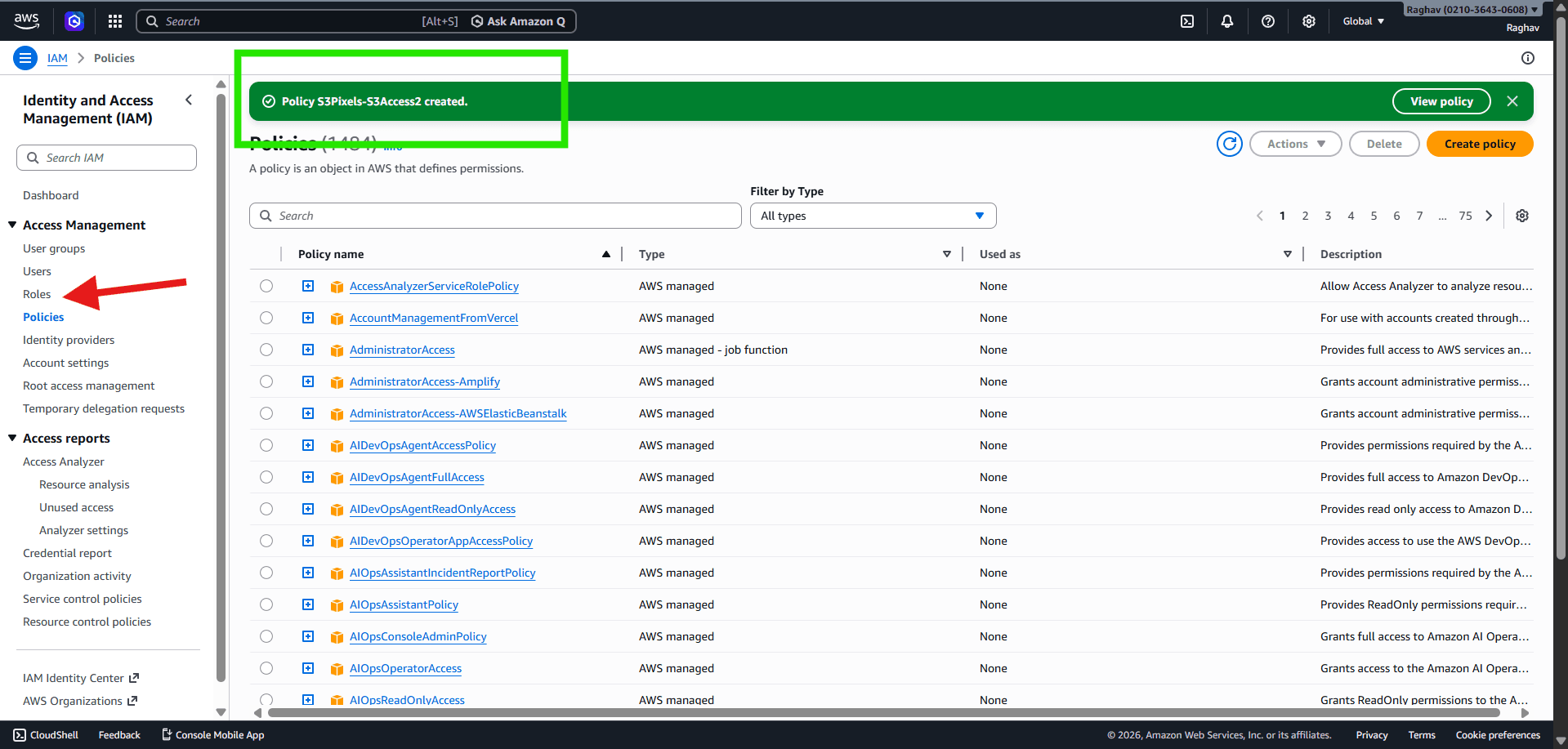
Go to Roles
After you see the policy created confirmation, open Roles in the IAM sidebar.
- 9
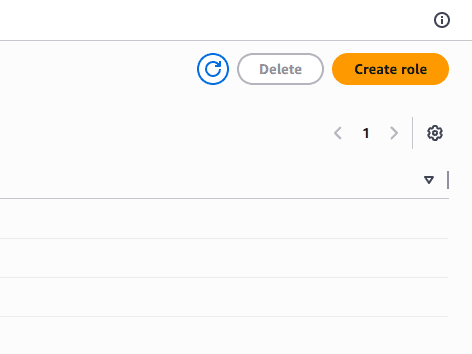
Create role
Click Create role.
- 10
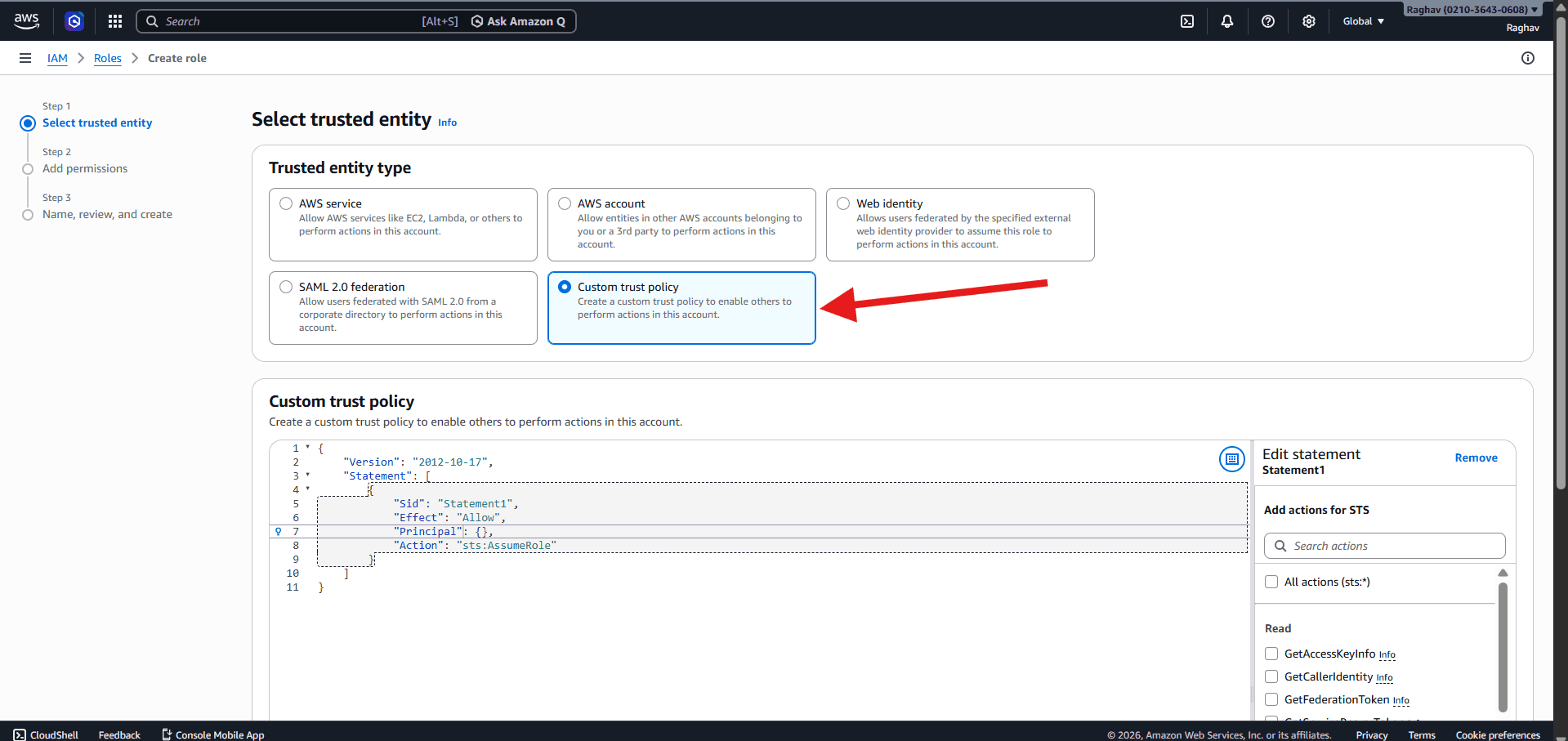
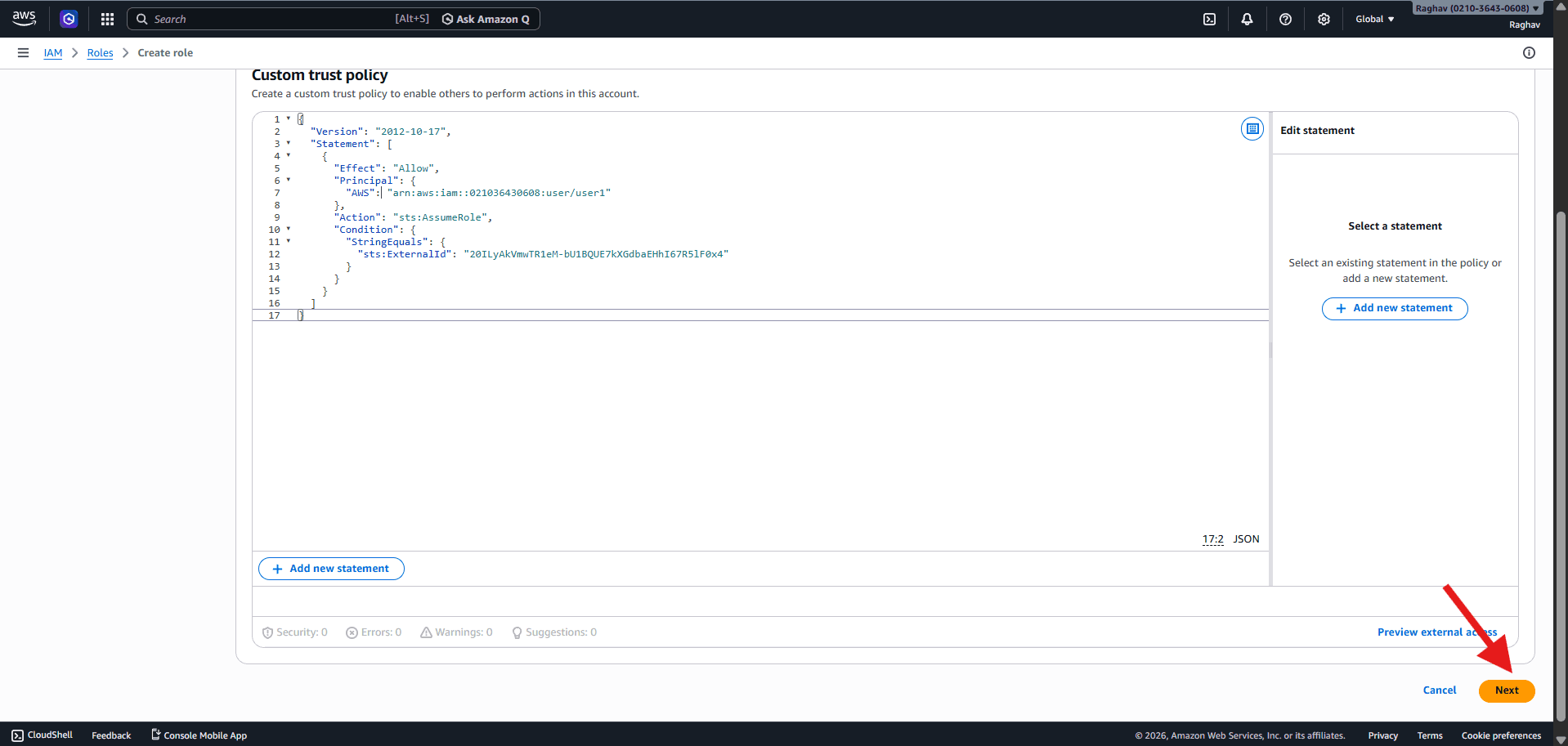
Custom trust policy
Choose Custom trust policy (not an AWS service shortcut).
- 11
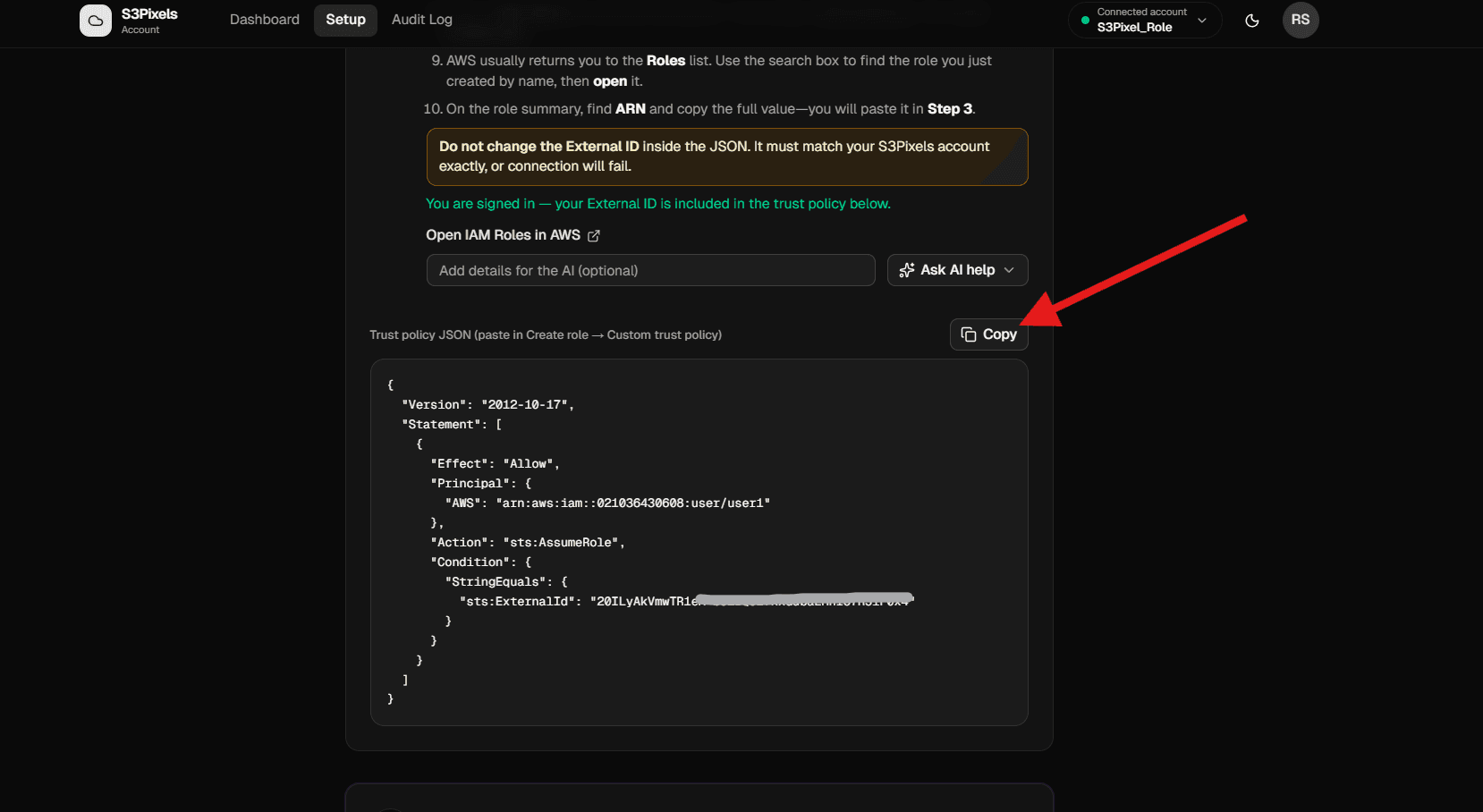
Trust policy from S3Pixels
On S3Pixels Setup, Step 2, copy the trust policy JSON (it includes your External ID when you are signed in).
- 12
Paste trust policy
Paste the JSON into the trust policy editor and click Next.
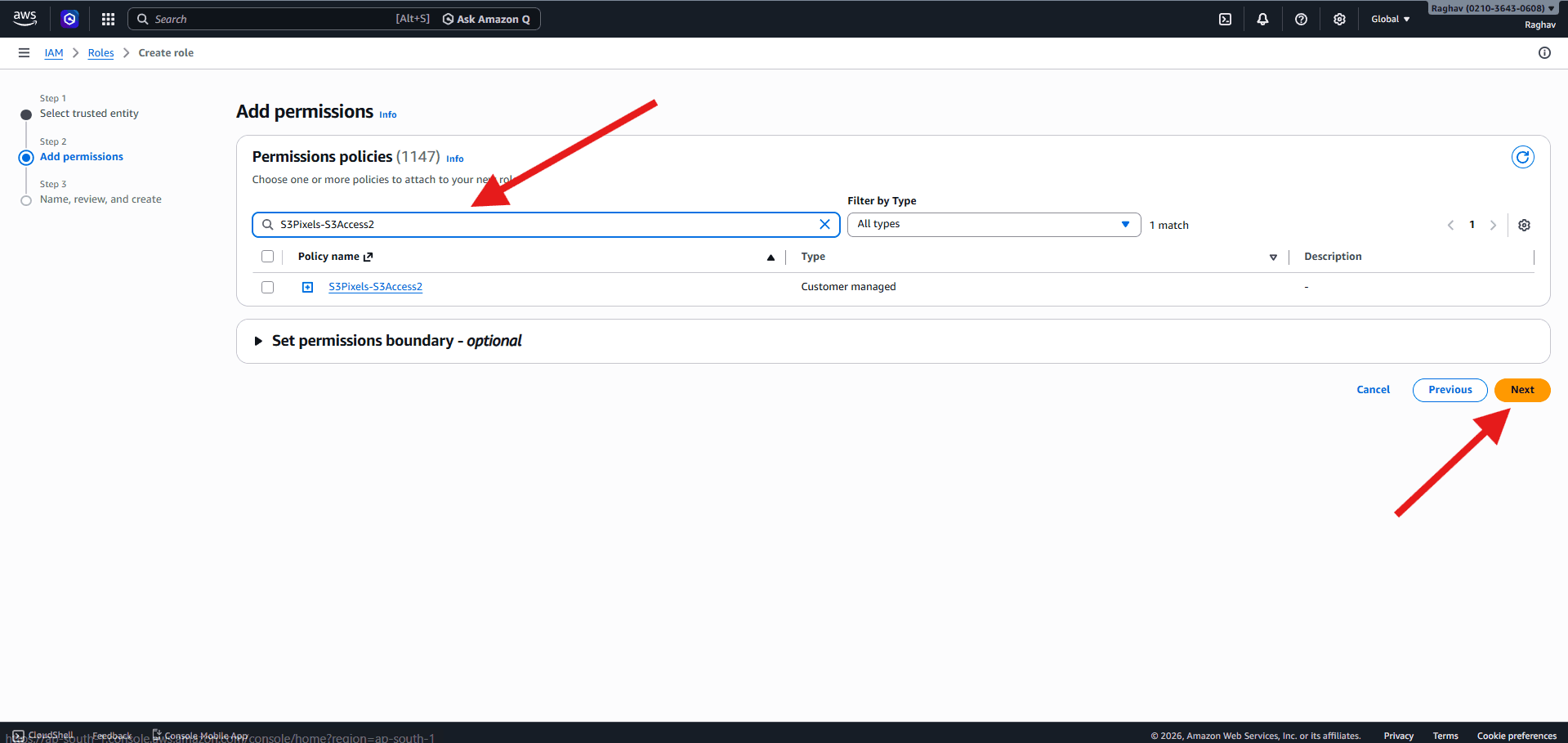
- 13
Attach your policy
Search for the policy name you created earlier, select it, then click Next.
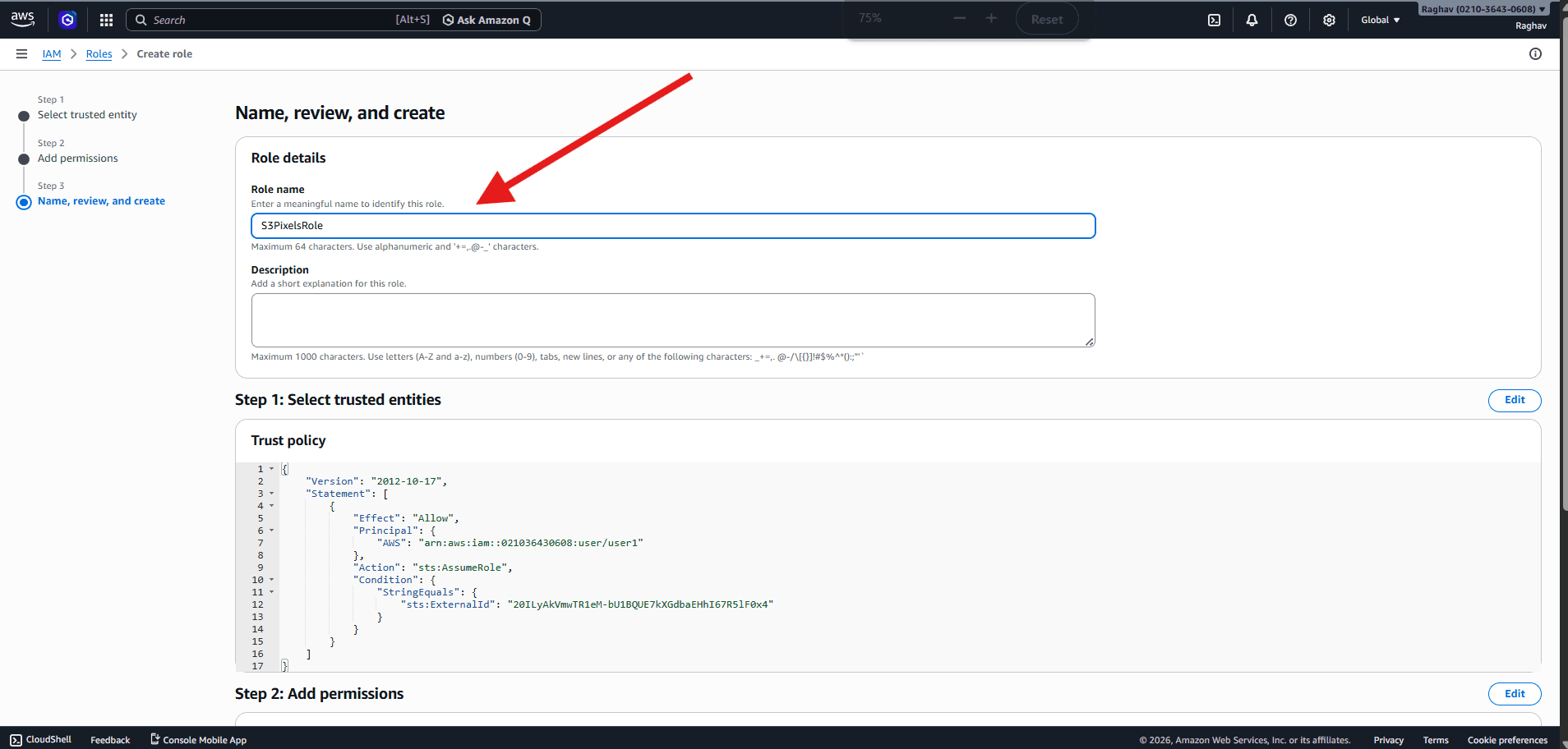
- 14
Name the role
Enter a role name you will remember, click Next if prompted, then Create role.
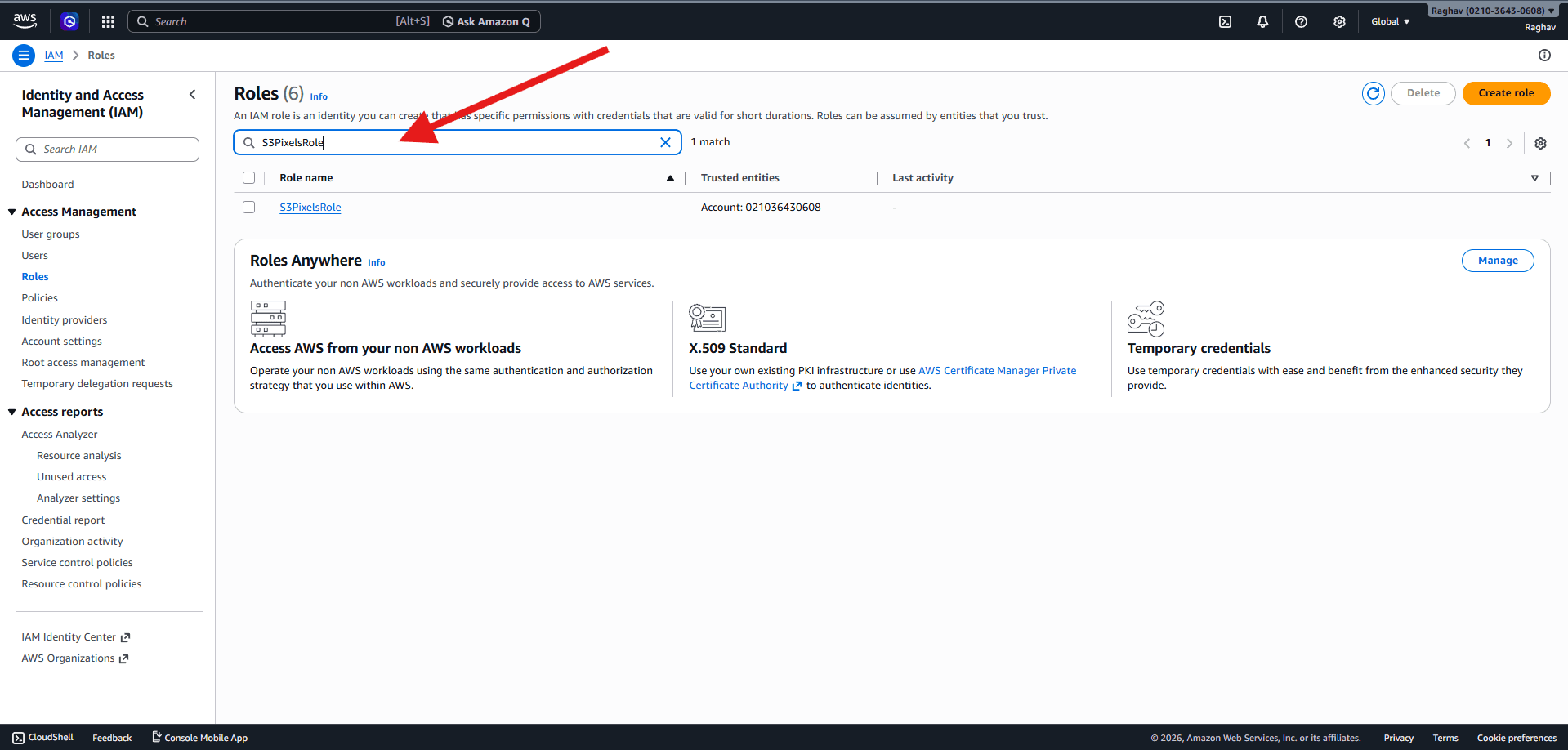
- 15
Open the role
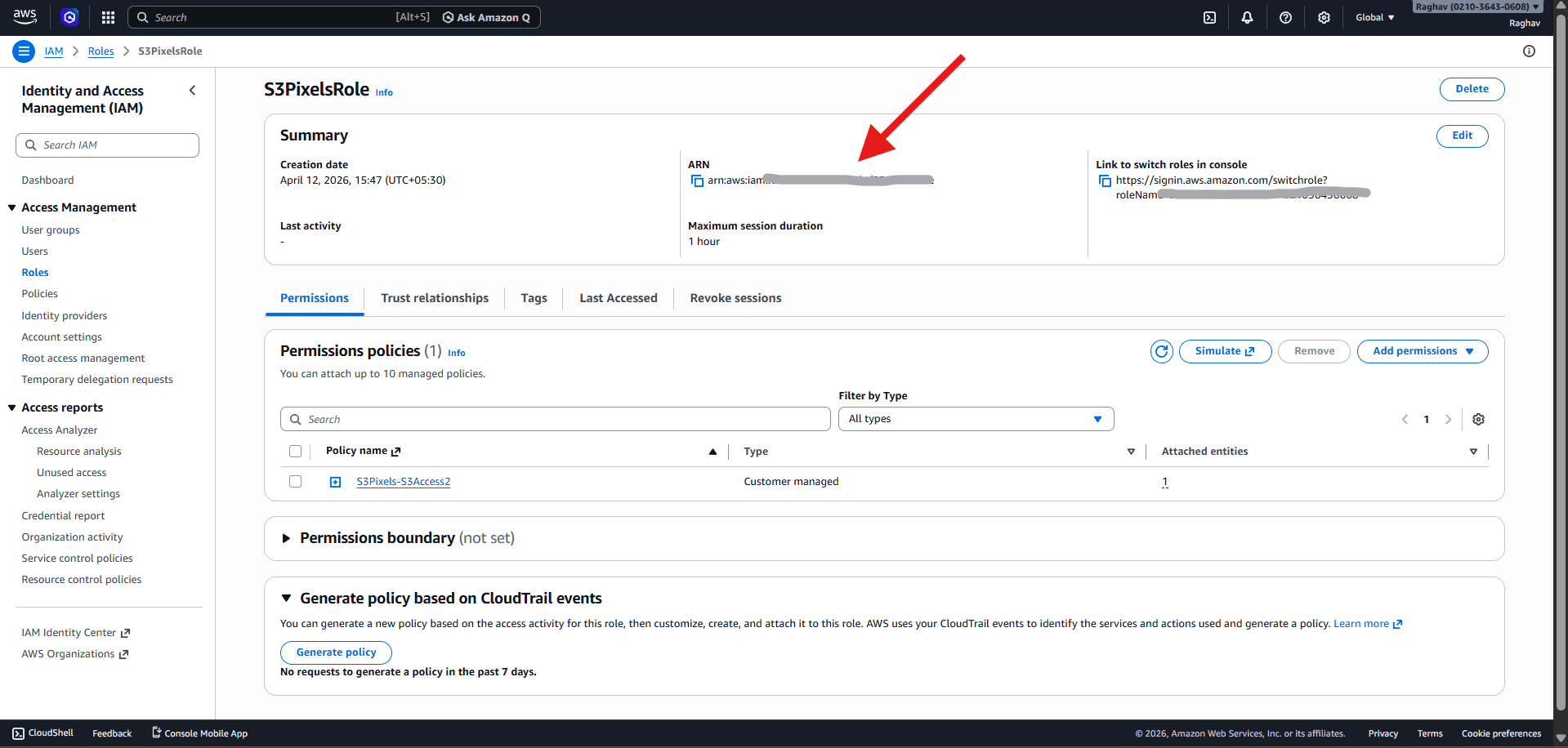
After creation you return to the roles list. Search for or click the role you just created to open its summary.
- 16
Copy the Role ARN
On the role summary page, copy the full ARN (it looks like `arn:aws:iam::123456789012:role/YourRoleName`).
- 17
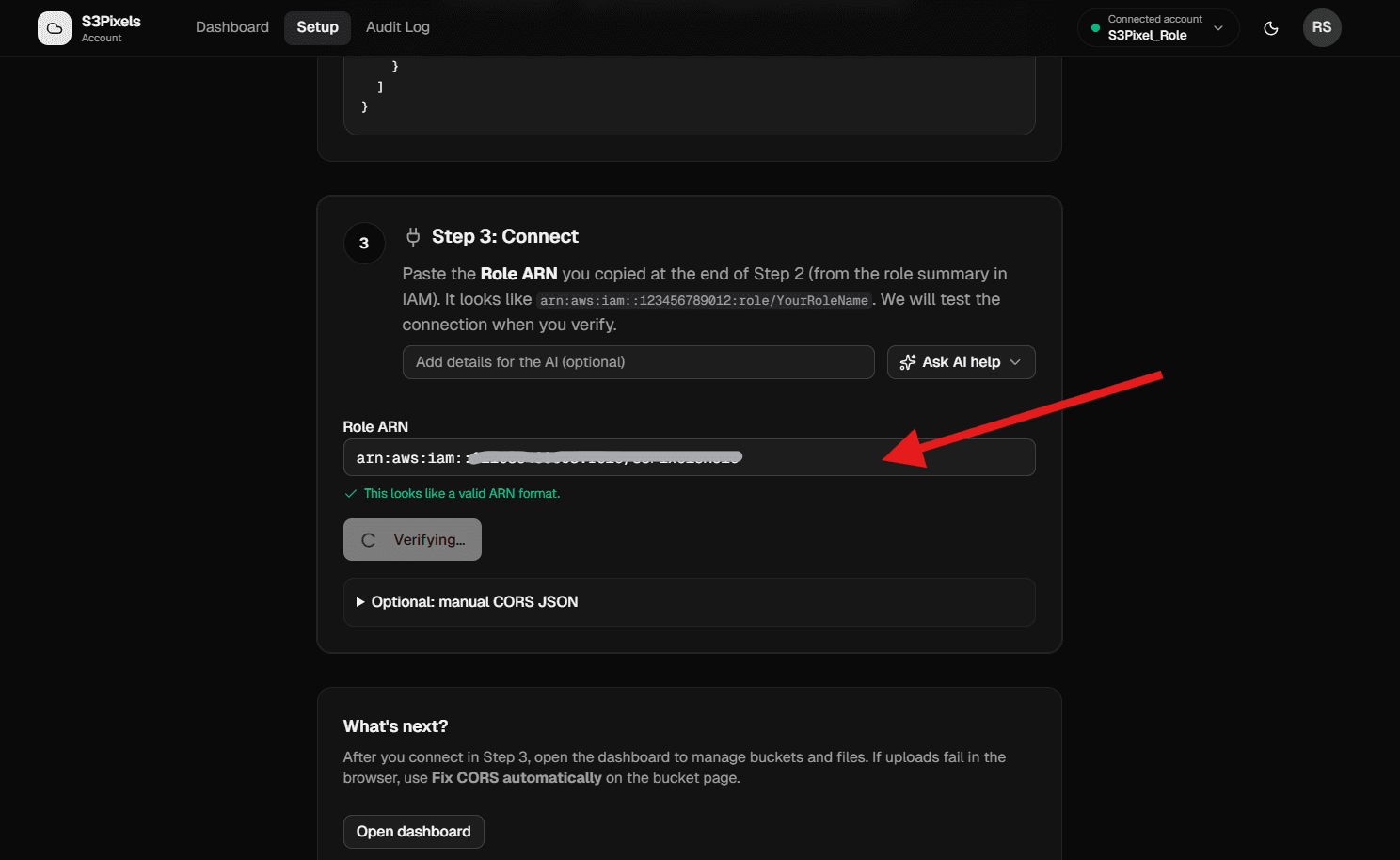
Verify in S3Pixels
On S3Pixels Setup, Step 3, paste the Role ARN and click Verify & Connect.
- 18
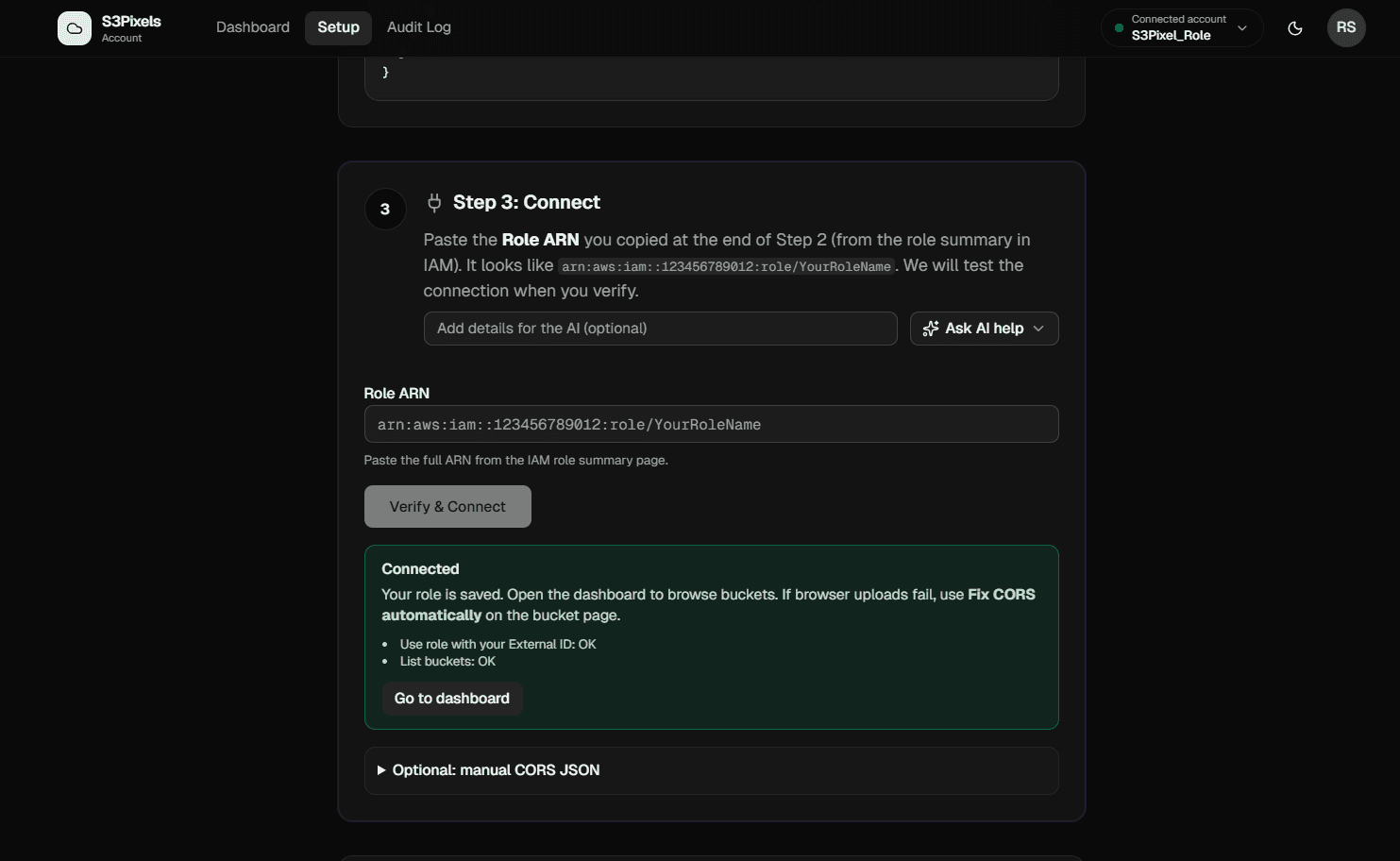
Connected
You should see a success state when the role is verified and saved. Use Go to dashboard to continue.
- 19
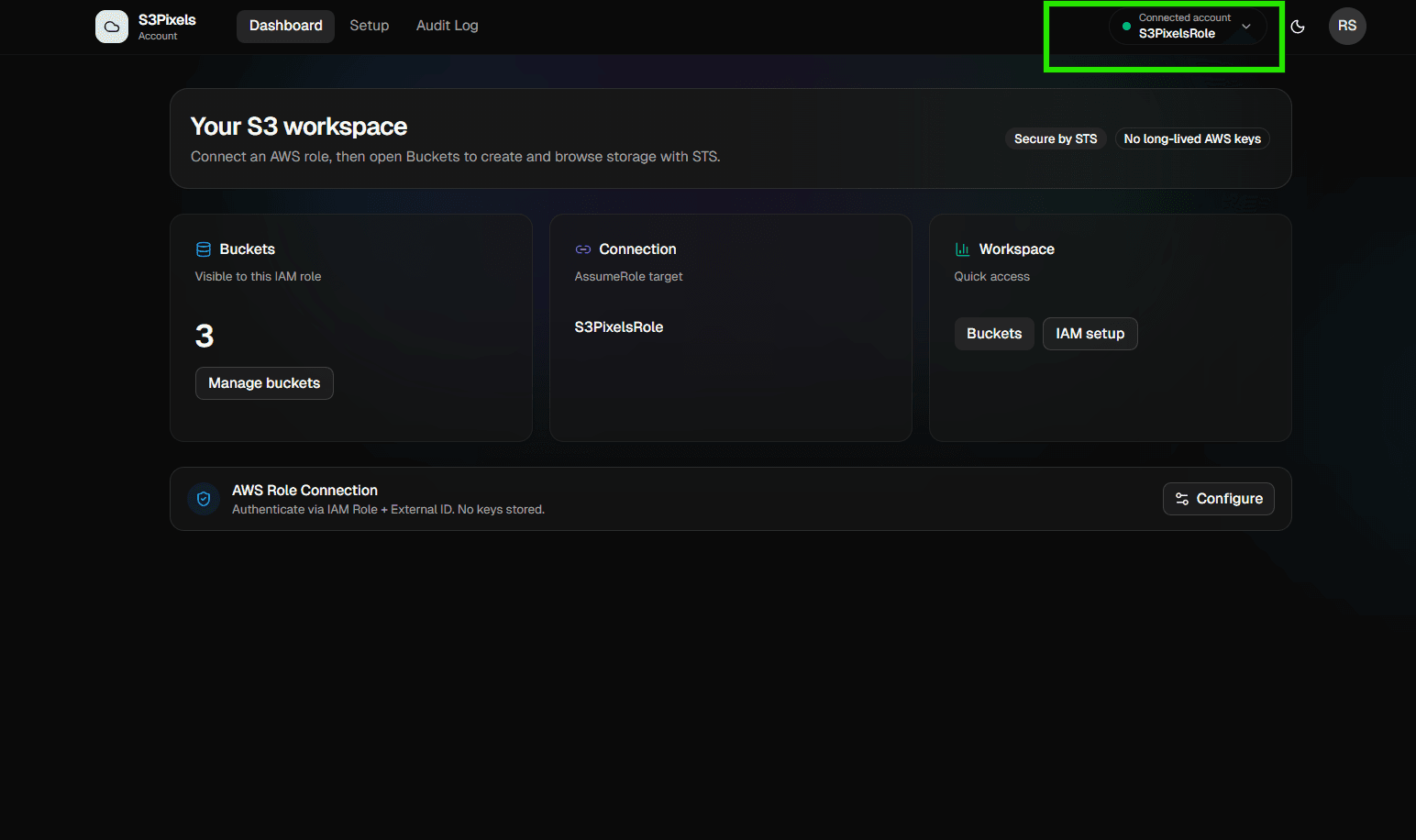
Use the workspace
On the dashboard you will see your connection name and bucket count. Open Manage buckets to list buckets and work with objects.